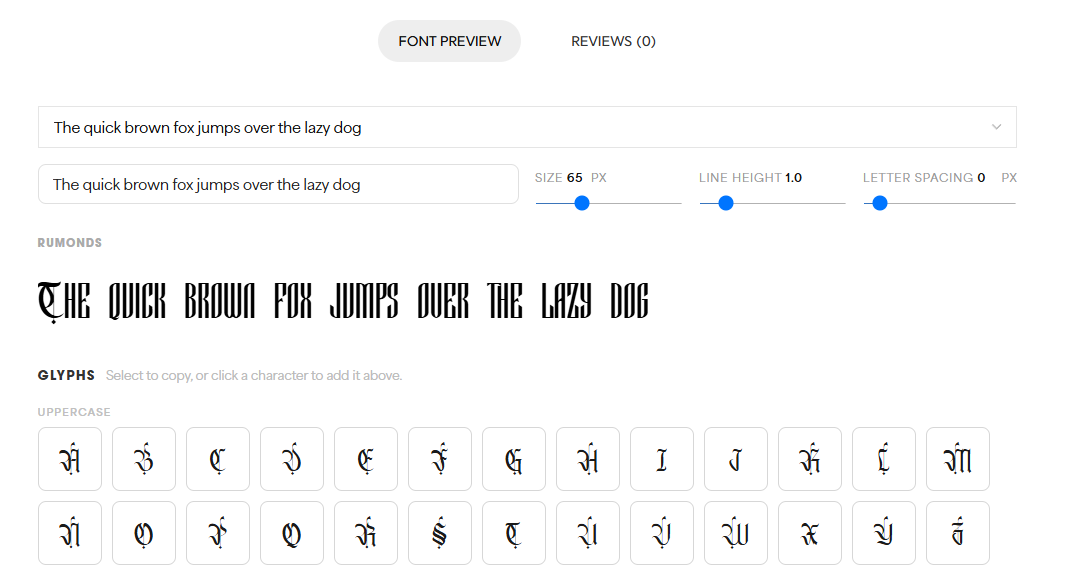
Exploring fonts has never been easier. Imoodev Font Preview feature lets you type any word and instantly see how it looks in your chosen typeface, complete with a Glyphs panel for browsing every character available in that font.
Take your time experimenting with different word pairings before making a purchase. This guide uses the Rumonds font as an example, available at imoodev.com/p/rumonds. The same steps apply to any other Imoodev font.
How to Open the “Font Preview” Tab
- Visit a font product page, for example imoodev.com/p/rumonds/.
- Scroll down to the tabs section below the image gallery and click the “Font Preview” tab (next to the “Reviews” tab).
- You’ll see a text box pre-filled with a preset sample, such as “The quick brown fox jumps over the lazy dog.”
How to Type & Customize the Preview Text
- Click the “— Preset Text —” dropdown to choose from ready-made samples (uppercase, lowercase, numbers, or punctuation).
- Or simply type your own word or sentence directly into the text box.
- Whatever you type will automatically render below in the actual typeface (in this case, Rumonds), so you can see the result in real time.
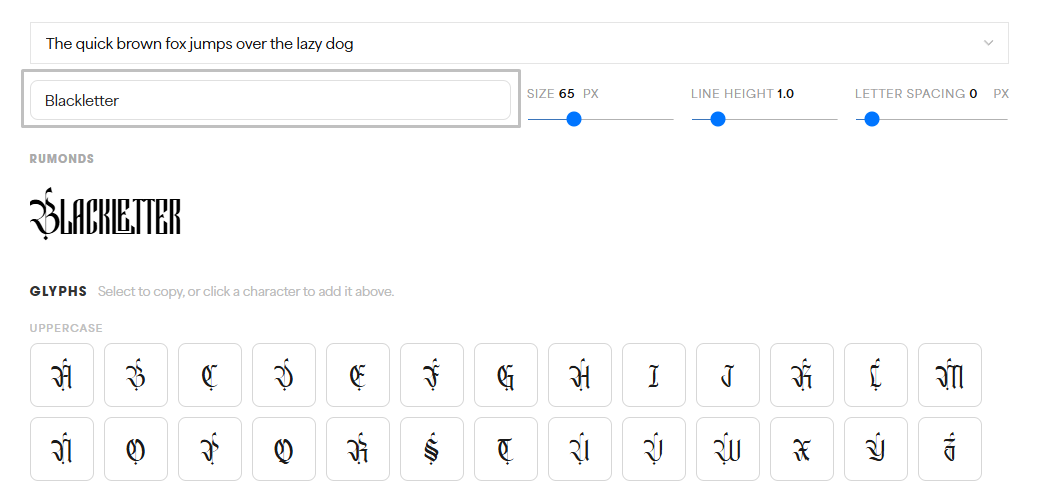
How to Adjust the Text Display
Above the preview area, you’ll find three sliders you can fine tune:
- Size — adjusts the font size (default example: 65px)
- Line Height — adjusts the spacing between lines (default example: 1.0)
- Letter Spacing — adjusts the spacing between letters (default example: 0px)
Drag these sliders to see how the font behaves at different sizes and spacing — useful for previewing how it would look in a logo, headline, or title design.
How to Browse & Use the “Glyphs” Panel
Below the preview area is the Glyphs panel, with the instruction: “Select to copy, or click a character to add it above.” This panel contains every character available in the font, organized into categories:
- Uppercase — A–Z
- Lowercase — a–z
- Numbers — 0–9
- Punctuation — marks such as . , ; : ! ? ” ‘ ( ) [ ] { } and smart/curly quotes
- Symbols & Math — symbols like + − = ≠ ± × ÷ < > ~ ° µ
- Currency — currency symbols such as $ ¢ £ € ¥ ₿
- Fractions & Numerals — fractions and superscript numbers like ½ ⅓ ¼ ¹ ² ³
- Accented Latin — accented letters such as À Á Â Ã Ä Å Æ Ç È É and special characters like Š š Ž ž Ł ł
Steps:
- Scroll to the category you need (for example, Accented Latin to find decorative or stylized characters not available on a standard keyboard).
- Click on any character in the Glyphs panel, it will automatically be inserted into the preview text box above.
- Alternatively, select a character and copy it manually with Ctrl+C / Cmd+C if you want to paste it elsewhere, such as into design software.
How to Replace Letters in Your Text With Glyph Characters
- Type the word you want to design, your brand name or a headline, for example — into the preview text box.
- Delete the letter whose appearance you’d like to change.
- Click the matching replacement character from the Glyphs panel (for example, an accented or decorative variant), it will automatically be inserted at your cursor’s position in the text box.
- Adjust the size, line height, and letter spacing until the result looks exactly how you want.
Note: Unlike some type testers that display multiple stylistic variants of the same letter (for example, several alternate forms of the letter “a” within one font), Imoodev Glyphs panel works as a complete character map, showing every unique character the font supports, including accented letters, symbols, and special punctuation. Decorative or alternate-looking characters are usually found under Accented Latin or Symbols & Math, depending on how the type designer mapped them.
Final Step
Once the preview matches what you’re looking for, choose a Licence Type, then click Add to Cart to proceed with your purchase.
By following these steps, you’ll be able to explore each font’s full character set with confidence before buying.